🧩 Support Knowledge Article For Stock Take Variance Troubleshooting
(Stock take variance)
⚠️ Issue: One or more items have a positive variance in the stock take
Having a positive variance in the stock take means the system expected less stock on hand than what was actually counted.
💡 Common Reasons
The most likely causes.
- Wrong count – Simple counting errors are common. Counting 140 kg instead of 140 g, or recording one case of six bottles instead of a single bottle, can create a positive variance.
- A delivery was not recorded - When a delivery isn’t entered, the system expects less stock on hand than what actually exists, creating a positive variance.
Wrong recipe – In reality a recipe may use less stock than set up in the system. Review and adjust recipes using this item if needed.
Duplicate or incorrect waste – If waste for this item was recorded twice when it was only done once, it can create a positive variance.
Wrong transfer – If the item was transferred twice but only moved once, it can result in a positive variance.
🔍 Troubleshooting Steps
Follow these checks to identify the root cause:
Double-check the physical count against the recorded quantity.
Verify that all expected and received deliveries within the stock take period are processed. Check for any deliveries entered outside the period by mistake.
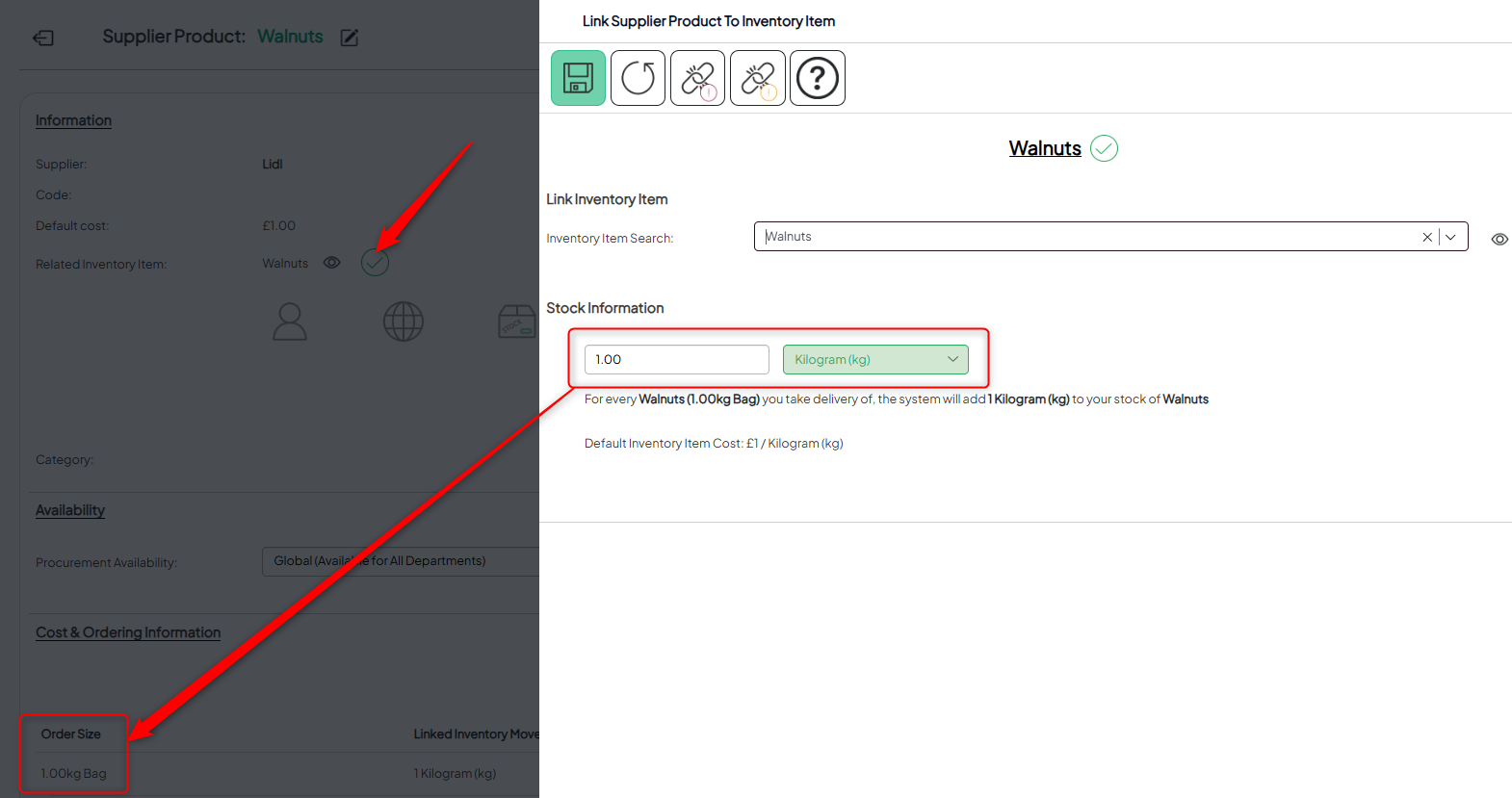
Confirm that the supplier product setup matches the actual quantity added to stock (e.g., 1 kg of potatoes adds exactly 1 kg to inventory).
Review waste records to see if anything was entered by mistake or duplicated, and adjust as needed.
Check transfer records for duplicate or incorrect movements and correct any errors.
🛠️ Resolution / How to Fix
Perform the following actions to resolve the issue:
Re-enter the correct quantity in the stock take.
Process any outstanding deliveries or record manual deliveries if orders were made outside the system. If supplier product stock movements are incorrect, contact support for assistance.
If waste was recorded in error or duplicated, contact support to remove or the entry.
Correct the error by creating a reverse transfer dated the same as the original movement.
✅ Verification
After applying the fix, confirm that:
The variance report has been re-run.
Stock take totals have been refreshed.
The item’s variance has updated and now reflects the correct value.
💬 Notes / Prevention
Tips to avoid similar issues in the future:
Always double-check physical counts before submission.
Ensure all deliveries are recorded within the stock take period.
Be careful when creating and linking new supplier products to inventory items.
Encourage the team to regularly review stock movements, including wastes and transfers, to catch errors early.